The delivery request, the step where Tigbuy takes its service charge
Paying for an order on Tigbuy covers the seller’s price and the China freight. The service charge waits. It is worked out and taken later, when items that have reached the warehouse are put into a delivery request.
What paying for an order covers
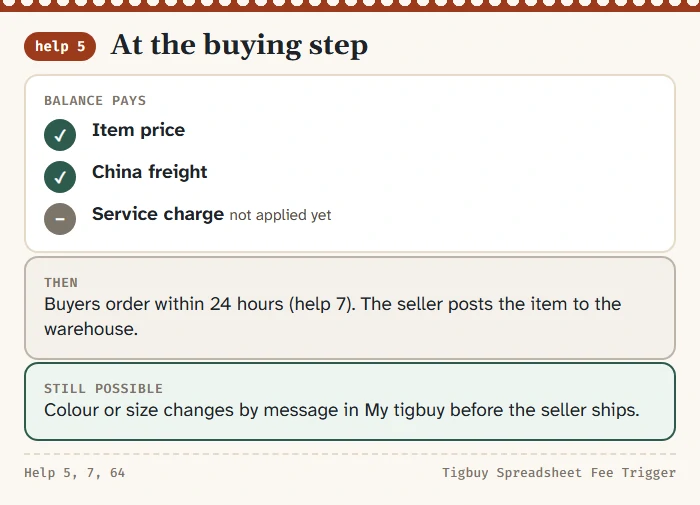
When you submit an order to buy, your balance pays the item price and the China freight, and Tigbuy’s buyers place the order with the seller. help 7 (“How long will my order be processed after it is made ?”, listed under Operator guide) says orders are processed within 24 hours; that is the buying team acting on it, not a promise about when anything arrives.
The service charge is not in this payment. Tigbuy’s own first sentence on the subject is that the service fee “is not charge in the step when you submit order to buy”. Nothing is wrong when your balance drops by less than you expected at this point; the percentage has simply not been applied yet.
From here the seller posts the item to the warehouse in China. The order sits in a purchased state while it is on the road, and you can still message about colour or size changes through My tigbuy if the seller has not shipped.
Help 5 in Tigbuy's own wording
The rule fits in two lines. help 5 (“When will I pay the service fee?”, listed under Operator guide) first says the fee is not charged at the order step, then continues:
But when your items are arrived our warehouse and you submit to ship, Service fee will be charged in this step
Tigbuy help 5, read 17 October 2026
We read the same article in Chinese, German, Spanish, Portuguese and Russian on the same day. All six say the charge comes when warehouse items are submitted for shipping. Help 5 shares its number with a category in Tigbuy’s help centre, so its own address opens a category list; the link above goes to the Operator guide list, where the article title appears and opens on a click.
Read literally, the step is “submit to ship”. Elsewhere Tigbuy calls the same action submitting delivery, submitting a waybill or a delivery request. This site uses “delivery request” throughout.

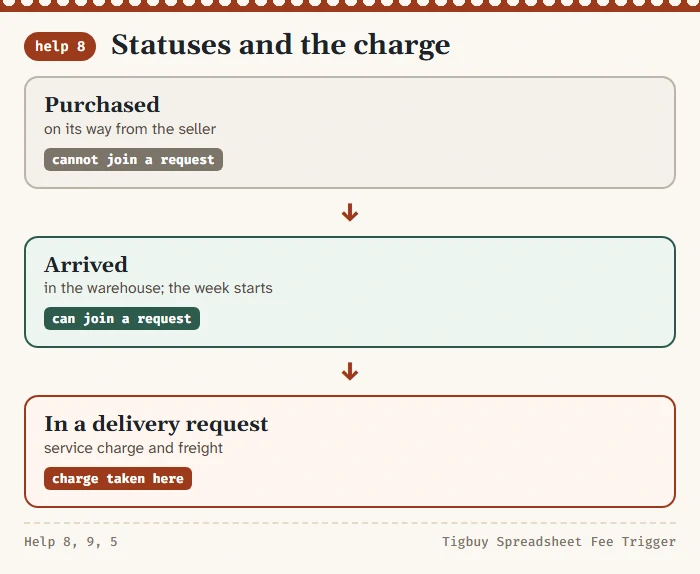
Arrived is the status that opens the request
help 8 (“How can I know if I can submit delivery?”, listed under Operator guide) tells you how to know when a delivery request is possible: watch the order status, and when it changes to “Arrived” you can submit delivery. An item still marked as purchased, or still on its way from the seller, cannot be put into a request, so it cannot be charged either.
help 9 (“When should I pay the shipping fee?”, listed under Operator guide) attaches the shipping fee to the same moment: once the status is Arrived you submit delivery, and the shipping fee is charged then. So the delivery request is the one screen where the service charge, the international freight and any extras are added up together.
Arrived also starts the warehouse week. From that status you have seven days in which an item can go back without a reason given, as a return or exchange; the warehouse week page covers that window and why a returned item never meets the charge.
The seven-day policy is a request window, not blanket approval. Tigbuy lists exclusions including altered goods, missing parts, opened media and missing purchase proof. Ask support to confirm the seller’s conditions and return postage before sending an item back.
Four things the request settles
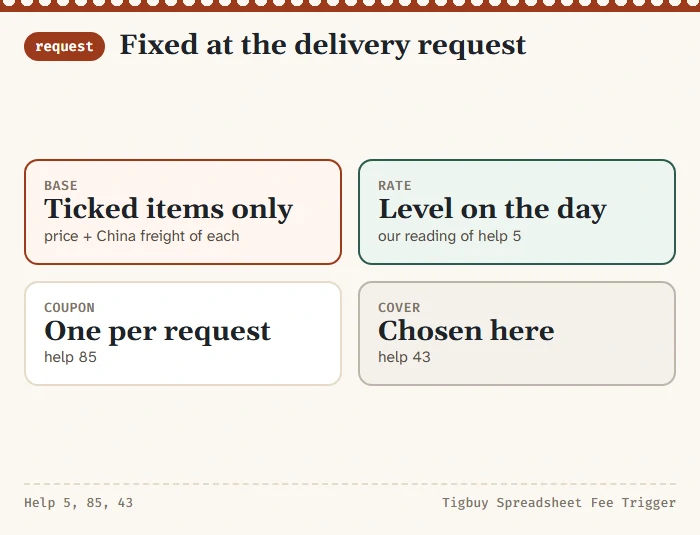
Because the charge is worked out at the request, four inputs are fixed there and nowhere earlier.
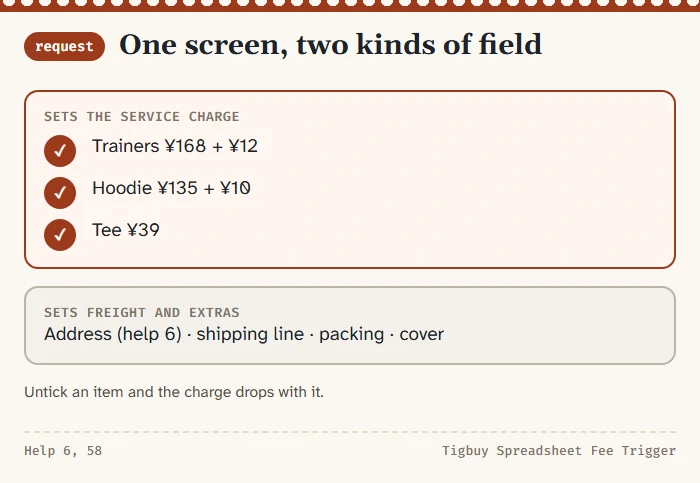
- The base. Only the items you tick for this parcel. Anything left on the shelf is not counted.
- The rate. Tigbuy does not spell this out, but since the charge is calculated at this step, the member level you hold when you submit is the one that applies. A level reached last week counts; one you reach next month does not.
- The coupon. One coupon per delivery request, set against the service charge (help 85).
- The cover. Tigbuy’s optional parcel cover is selected when you submit items to ship (help 43).
Each of these has its own page here: the coupons and member rates page for the middle two and the parcel cover page for the last.
Address, line and packing are chosen on the same screen
help 6 (“When should I tell you my shipping address?”, listed under Operator guide) says you give your shipping address when submitting delivery, not when you place the order. The same screen asks for the shipping method and offers packing options; Tigbuy shows the prices of those options there rather than in a published list.
None of those choices changes the service charge. A pricier line or a sturdier box changes the freight and extras, which are outside the base. What does change the charge on this screen is which items you tick, because each one brings its price and China freight into the base.
One habit helps: decide the parcel’s contents before you start filling in the address and line. If you remove an item at the last moment, the service charge drops with it, and you can check the new figure against the board on this site before you pay.
Items left on the shelf are not charged yet
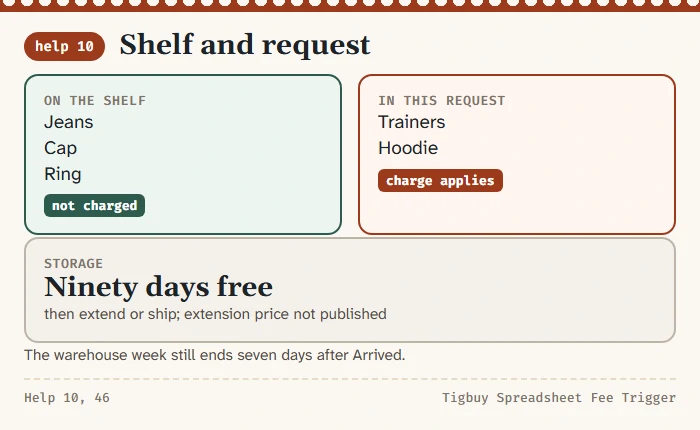
You do not have to ship everything that has arrived. A request can take two items and leave three on the shelf, and the three stay uncharged until a later request includes them. That later request applies whatever member rate you hold that day.
Shelf time is not unlimited. help 10 gives ninety days of free storage and asks you to extend storage or submit items for shipment before they expire. The price of an extension is not published in the help centre, so ask support before you rely on one.
Waiting has a second cost that has nothing to do with fees: the warehouse week closes seven days after Arrived. An item you leave on the shelf for a month can no longer go back under the no-reason policy, even though it has never been charged.
Your first Tigbuy order: the official seven-stage sequence
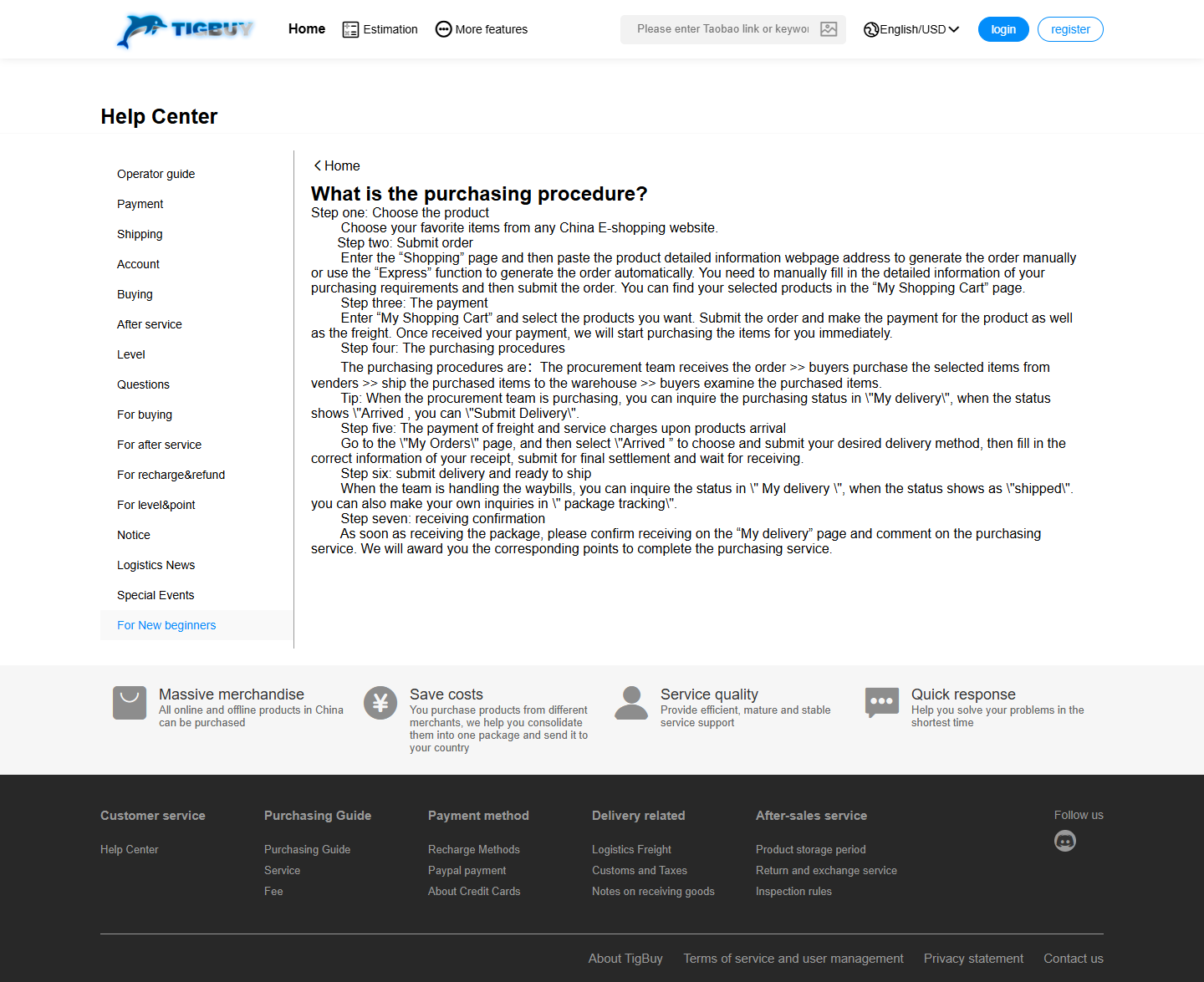
Tigbuy’s purchasing-procedure article lists seven stages in this order. The notes below explain the decisions you make at each stage; they do not change the official sequence. Read on 17 October 2026.
- Choose the product. Find an item, open its seller listing and keep the exact URL, size, colour and quantity. Check restrictions and an initial shipping estimate before spending money.
- Submit the order. Paste the seller URL into Tigbuy’s shopping page. If automatic import cannot identify the item, use its manual order fields. Check the imported price and variant before adding it to your cart.
- Pay for the purchase. Select the intended items in the cart and review the product and domestic shipping amounts. A successful payment starts purchasing; it is not a confirmation that the seller still has stock.
- Purchasing and warehouse inspection. Tigbuy buys from the seller, receives the parcel and checks the arrival. Compare available QC photos with the listing. Raise a discrepancy while a return may still be possible.
- Settle freight and service charges. Select the arrived items you want to ship, enter your delivery address and choose an available line. Review the service charge, freight and optional services before approving the request.
- Submit delivery and track shipment. Follow the parcel in My delivery and use the tracking number once a waybill is available. Packing and dispatch are separate from the earlier seller shipment to the warehouse.
- Receive and confirm. Inspect the parcel and contents before confirming receipt. Retain packaging, labels and photos if something is missing or damaged, and contact Tigbuy within the applicable claim deadline.